> ## Documentation Index
> Fetch the complete documentation index at: https://docs.nadles.com/llms.txt
> Use this file to discover all available pages before exploring further.
# User authentication
> Configure how Nadles authenticates your API consumers.
Nadles API Gateway authenticates users by API keys/tokens sent along with each request. When the user activates a new subscription, Nadles issues a unique API key and the user can obtain it on the subscription page in the self-service portal.
For the gateway to know where to find the API key in the HTTP request, a token extraction strategy needs to be configured. The strategy consists of one or more steps.
In order to configure token extraction strategy, navigate to **My APIs → choose API → Settings → User authentication tab**.
If you make changes to the user authentication settings, make sure to update the [authentication instructions](/api-management/settings#authentication-instructions-for-api-users) displayed to your customers in the self-service portal and on the checkout page.
## Default strategy
By default, the gateway looks for the API key in the `Api-Key` request header.
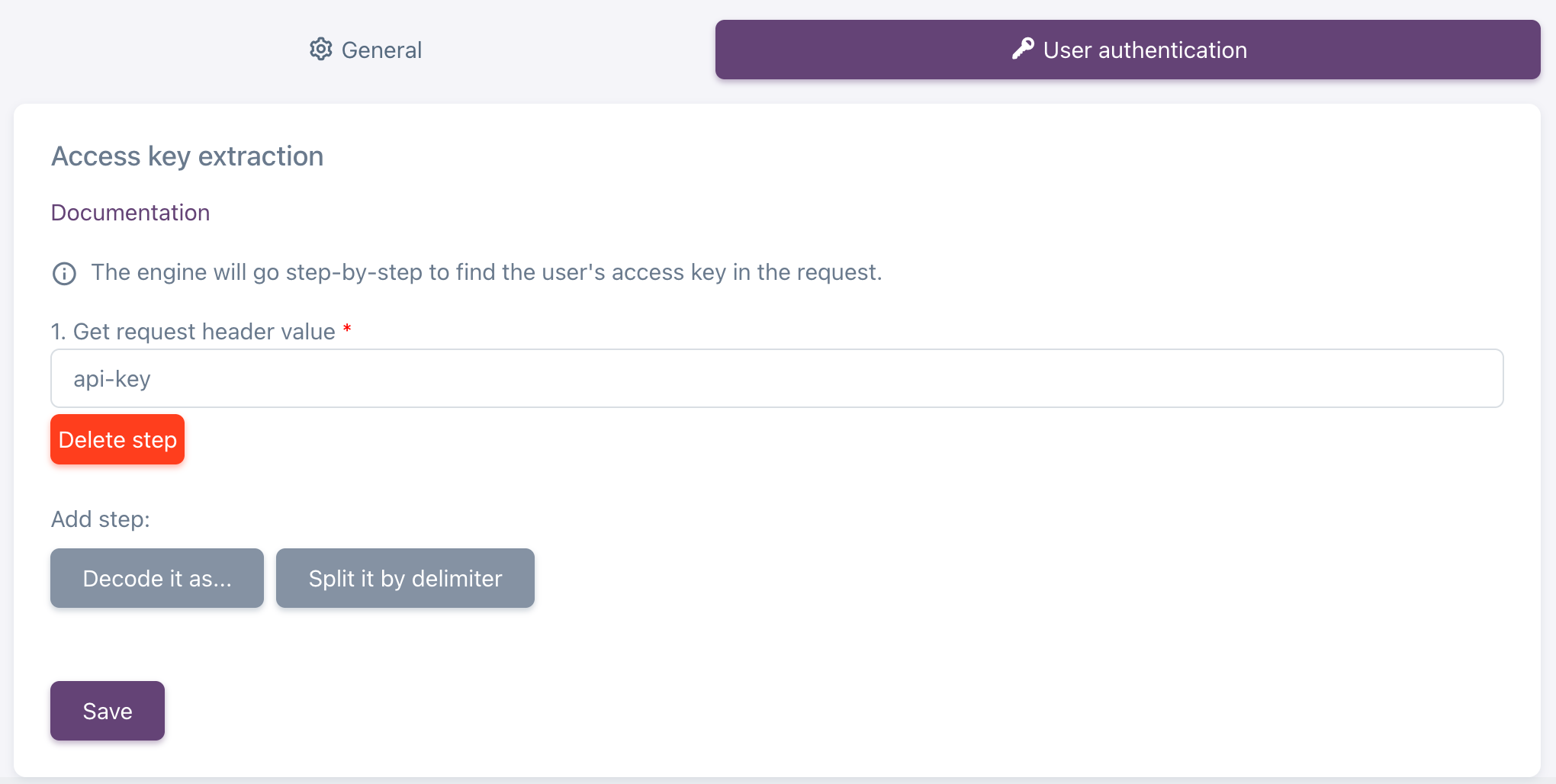 The header name is chosen to avoid interference with "Authorization" header in cases when the API uses it for internal authentication.
## API key in an arbitrary header
If you'd like to use a custom header for the access token (e.g. `X-My-Api-Token: `), configure the token extraction strategy as follows:
* Click **Delete step** in order to clear the step list.
Click **Get request header value**.
* Enter `X-My-Api-Token` as header name.
* Click **Save**.
Now API users can send the token in `X-My-Api-Token: ` header.
## API key in "Authorization: Bearer" header
If you'd like to use `Authorization: Bearer ` scheme, configure the token extraction strategy as follows:
* Click **Delete step** in order to clear the step list.
* Click **Get request header value**.
* Enter `Authorization` as header name.
* Click **Split it by delimiter**.
* Enter "` `" (space) as delimiter.
* Click **Take value by path or apply expression**.
* Enter `input[1]` as expression.
In the expression you can use the result of the previous step, it's stored in a variable named `input`.
* Click **Save**.
The header name is chosen to avoid interference with "Authorization" header in cases when the API uses it for internal authentication.
## API key in an arbitrary header
If you'd like to use a custom header for the access token (e.g. `X-My-Api-Token: `), configure the token extraction strategy as follows:
* Click **Delete step** in order to clear the step list.
Click **Get request header value**.
* Enter `X-My-Api-Token` as header name.
* Click **Save**.
Now API users can send the token in `X-My-Api-Token: ` header.
## API key in "Authorization: Bearer" header
If you'd like to use `Authorization: Bearer ` scheme, configure the token extraction strategy as follows:
* Click **Delete step** in order to clear the step list.
* Click **Get request header value**.
* Enter `Authorization` as header name.
* Click **Split it by delimiter**.
* Enter "` `" (space) as delimiter.
* Click **Take value by path or apply expression**.
* Enter `input[1]` as expression.
In the expression you can use the result of the previous step, it's stored in a variable named `input`.
* Click **Save**.
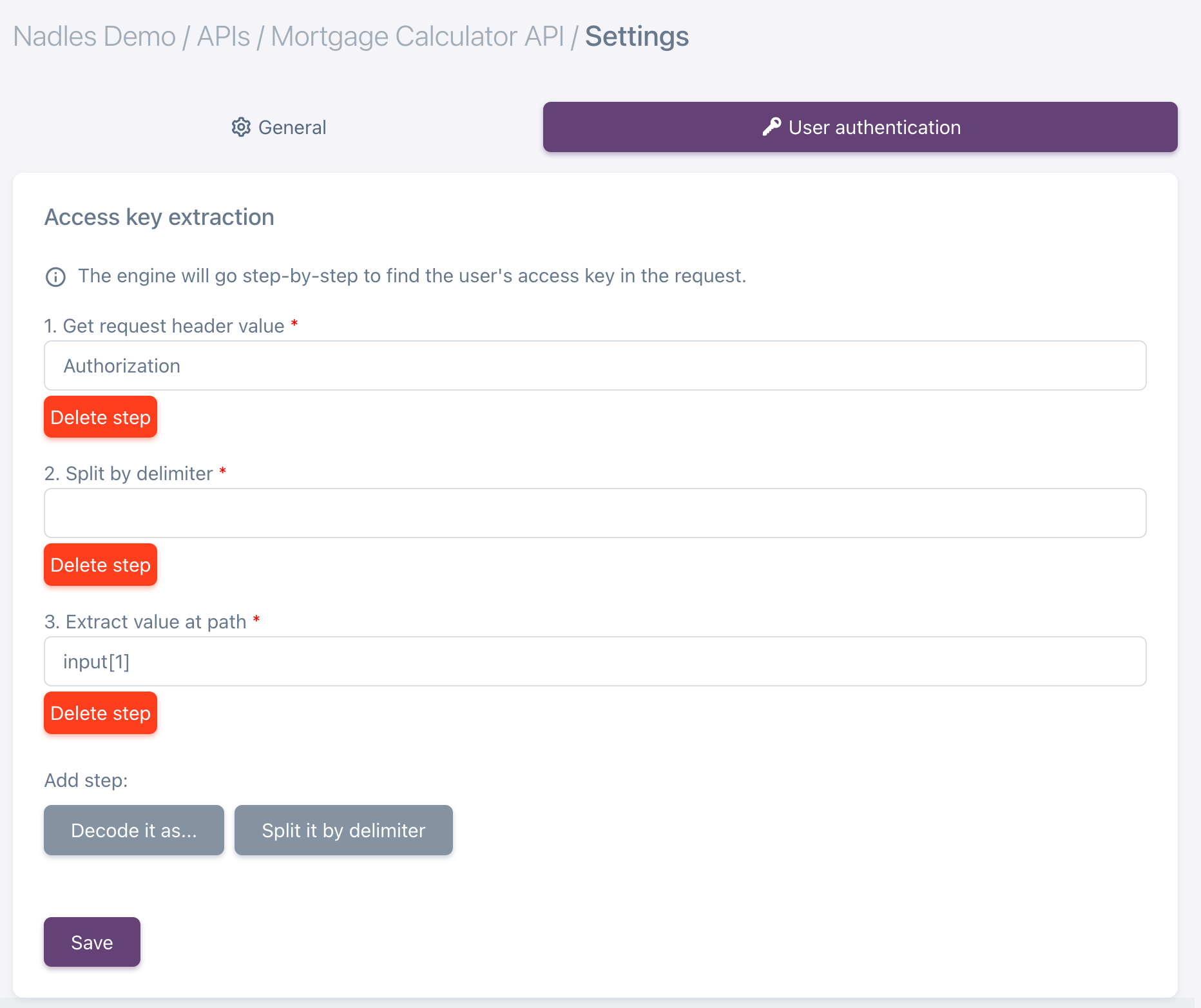 Now the gateway will look for the token in `Authorization: Bearer ` header.
## API key in JSON body
Let's say the request body is a JSON object containing access token:
```json theme={null}
{
"auth": {
"token": ""
},
"payload": {
// ... actual request payload
},
}
```
Nadles API Gateway needs to parse the request body as JSON and take the API key from that JSON object by the specified path.
In order to implement that, configure the token extraction strategy as follows:
* Click **Delete step** in order to clear the step list.
* Click **Get request body**.
* Click **Decode it as...**.
* Choose `JSON` from the dropdown list.
* Click **Take value by path or apply expression**.
* Enter `input.auth.token` as expression.
* Click **Save**.
Now the gateway will look for the token in `Authorization: Bearer ` header.
## API key in JSON body
Let's say the request body is a JSON object containing access token:
```json theme={null}
{
"auth": {
"token": ""
},
"payload": {
// ... actual request payload
},
}
```
Nadles API Gateway needs to parse the request body as JSON and take the API key from that JSON object by the specified path.
In order to implement that, configure the token extraction strategy as follows:
* Click **Delete step** in order to clear the step list.
* Click **Get request body**.
* Click **Decode it as...**.
* Choose `JSON` from the dropdown list.
* Click **Take value by path or apply expression**.
* Enter `input.auth.token` as expression.
* Click **Save**.
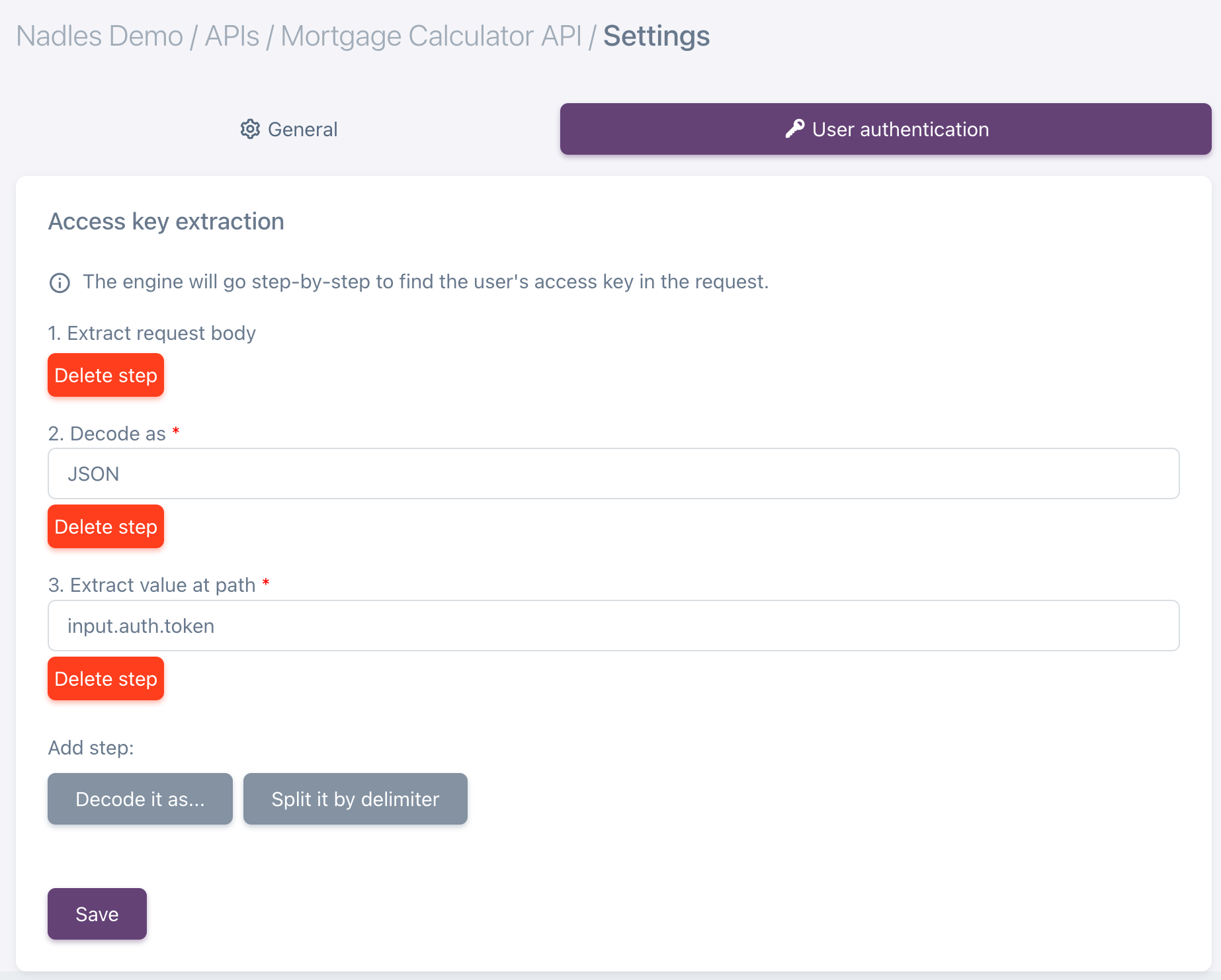 The gateway will decode the request body as JSON and extract the token value by the specified path.
## API key in query string
In some scenarios it's more convenient to pass API keys in a query string parameter.
For example, you would like to pass API keys in `apiKey` query string parameters like `/orders/154?apiKey=MmU2YzQ4ODktNzFjMi00OWM1LTlhNTgtZDJhZjZmN2M1ODY1`
* Click **Delete step** in order to clear the step list.
* Click **Get raw query string**.
* Choose `Query string` from the dropdown list.
* Click **Take value by path or apply expression**.
* Enter `input.apiKey` as expression.
The gateway will decode the request body as JSON and extract the token value by the specified path.
## API key in query string
In some scenarios it's more convenient to pass API keys in a query string parameter.
For example, you would like to pass API keys in `apiKey` query string parameters like `/orders/154?apiKey=MmU2YzQ4ODktNzFjMi00OWM1LTlhNTgtZDJhZjZmN2M1ODY1`
* Click **Delete step** in order to clear the step list.
* Click **Get raw query string**.
* Choose `Query string` from the dropdown list.
* Click **Take value by path or apply expression**.
* Enter `input.apiKey` as expression.
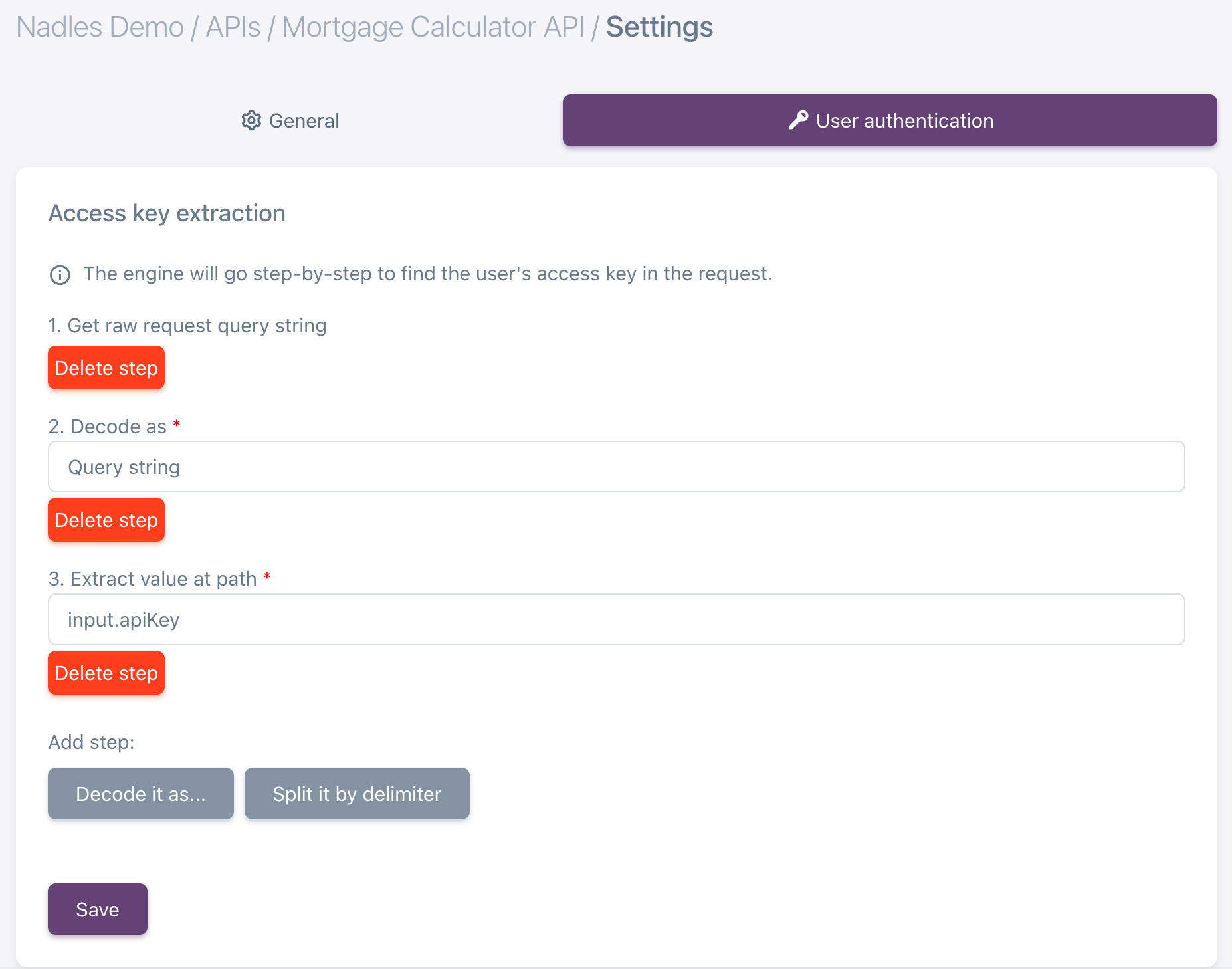 In the expression you can use the result of the previous step, it's stored in a variable named `input`.
Now the API Gateway will look for API keys in `apiKey` query string parameter.
In the expression you can use the result of the previous step, it's stored in a variable named `input`.
Now the API Gateway will look for API keys in `apiKey` query string parameter.