> ## Documentation Index
> Fetch the complete documentation index at: https://docs.nadles.com/llms.txt
> Use this file to discover all available pages before exploring further.
# Billing for AI tokens usage
TL;DR:
* Nadles natively supports automatic AI and LLM tokens usage billing.
* All you need is to add one line to billable metric configuration.
* Nadles Gateway processes the response automatically and records the tokens usage.
* Nadles Billing aggregates the usage and initiates payments for your customers.
## How it works
This is a plan that your customers will subscribe to.
For example, "Input tokens", "Output tokens", "Total tokens", etc.
Let Nadles know the response format for each endpoint, such as OpenAI Completions API, OpenAI Responses API, Anthropic APIs, Ollama, Gemini, etc.
For each billable metric.
Set limits on the number of tokens used for each billable metric.
You've now set up billing for AI tokens usage. [Set up the user portal](/user-portal/getting-started) to let your customers pay and start using your API.
## Prerequisites
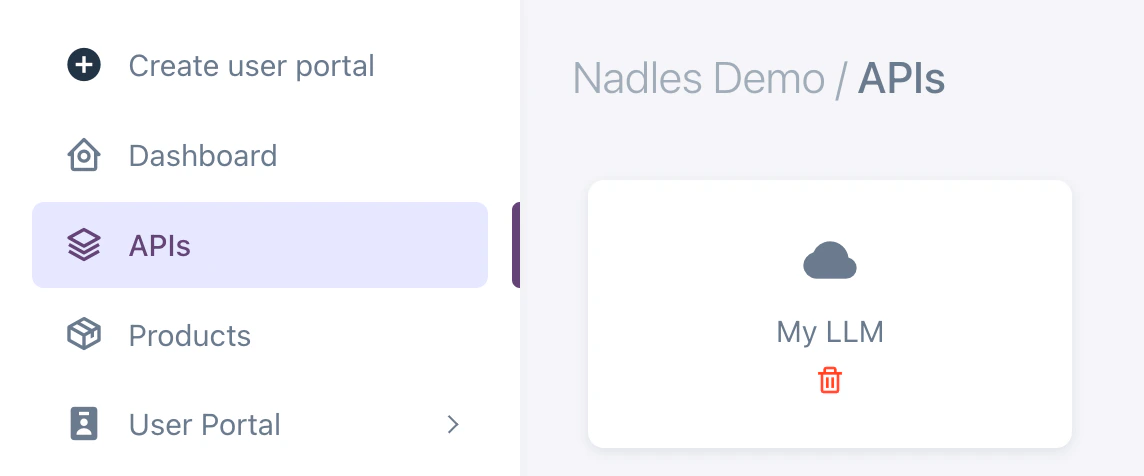
* You've [added an API](/api-management/add-api#adding-a-new-api)
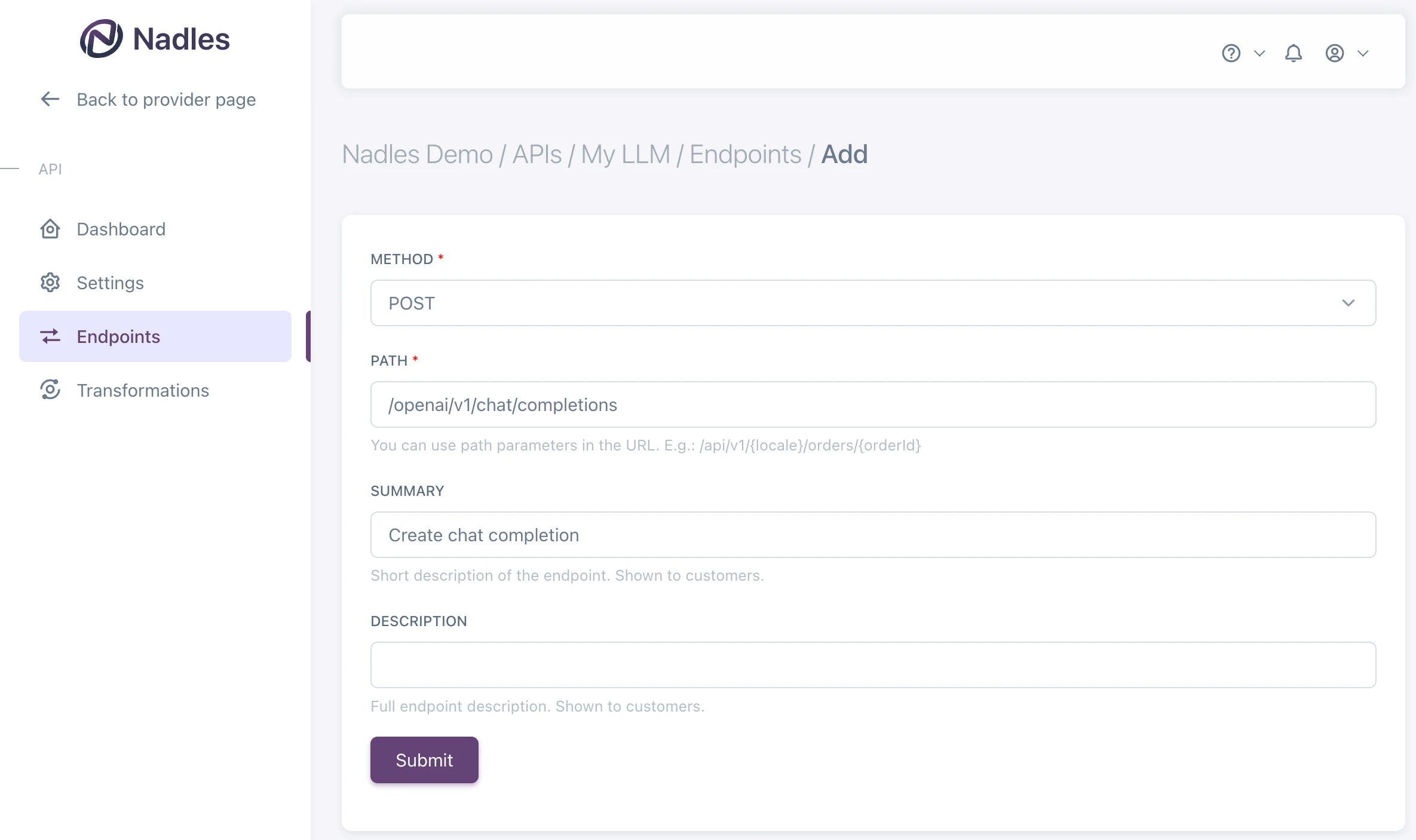
 * You've added the [LLM endpoint](/api-management/add-api#adding-endpoints)
 ## Create product
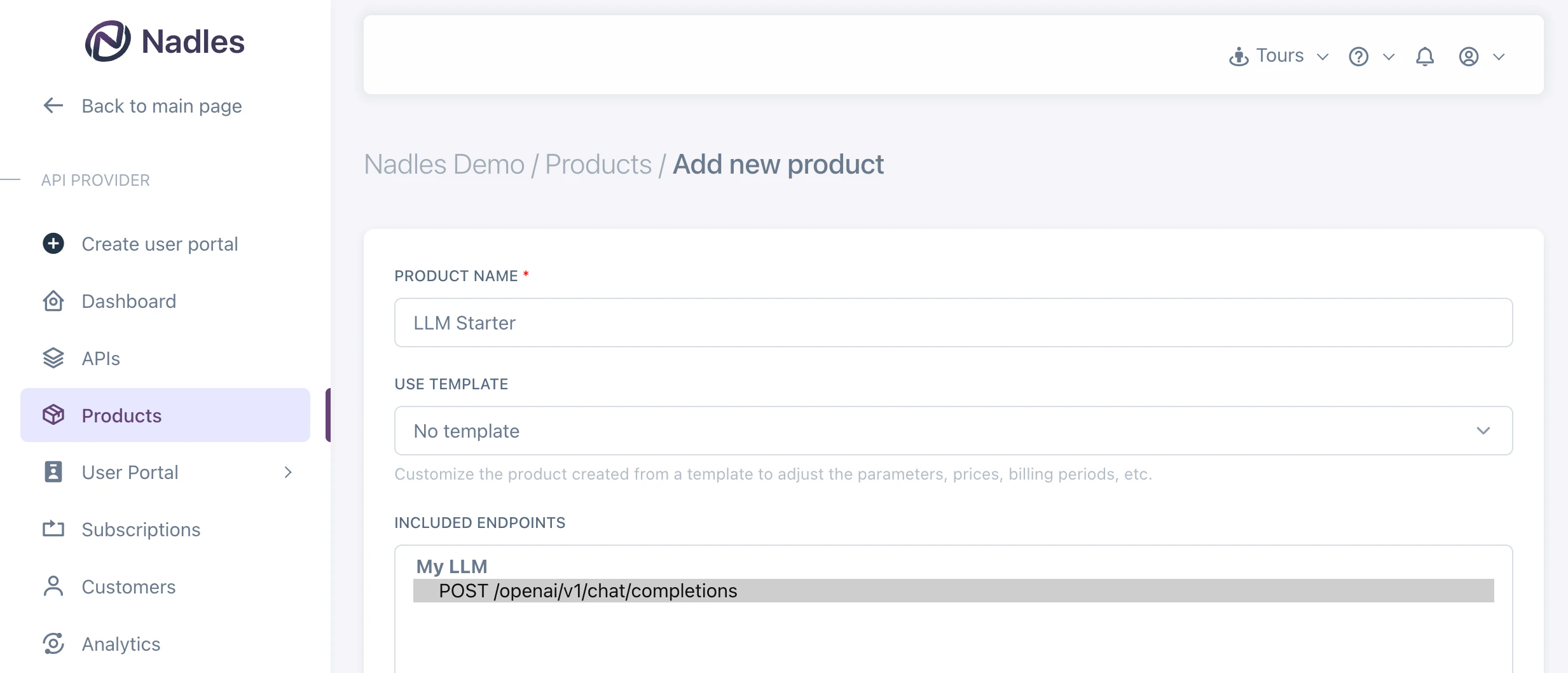
Navigate to **Products** in the left menu and click **Add new product**.
Make sure to select the endpoint you want to bill for.
## Create product
Navigate to **Products** in the left menu and click **Add new product**.
Make sure to select the endpoint you want to bill for.
 ## Add billable metrics
Once the product is created, you can add billable metrics to it.
Billable metrics tell Nadles what you want to charge for.
For example, "Input tokens", "Output tokens", "Total tokens", etc.
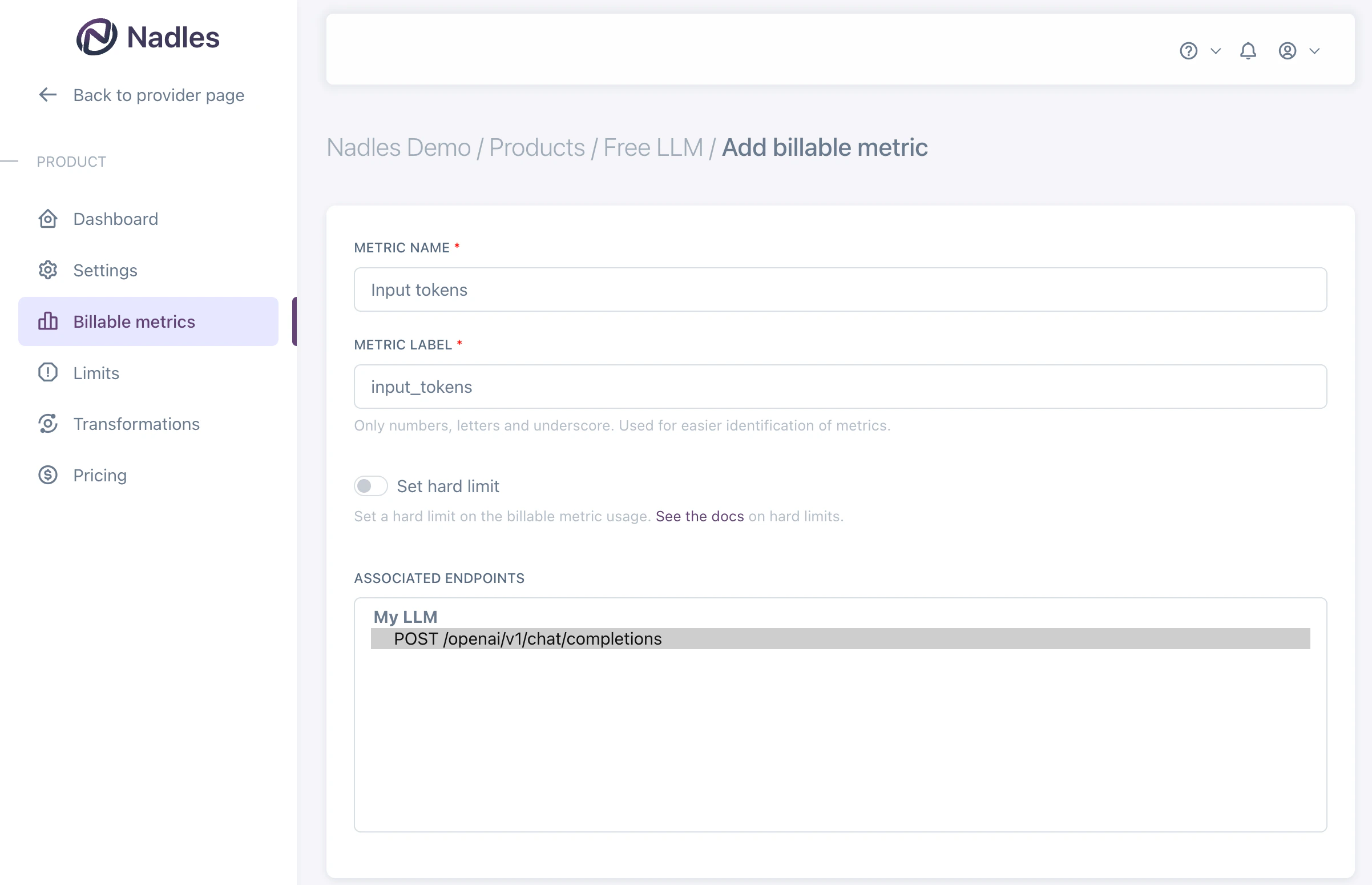
Navigate to **Billable metrics** in the left menu and click **Add new metric**.
## Add billable metrics
Once the product is created, you can add billable metrics to it.
Billable metrics tell Nadles what you want to charge for.
For example, "Input tokens", "Output tokens", "Total tokens", etc.
Navigate to **Billable metrics** in the left menu and click **Add new metric**.
 If you need to later associate more endpoints with the billable metrics for the same product, you can do so by navigating to the **Usage configuration** tab and clicking **Add endpoint**.
### Charge for input and output tokens separately
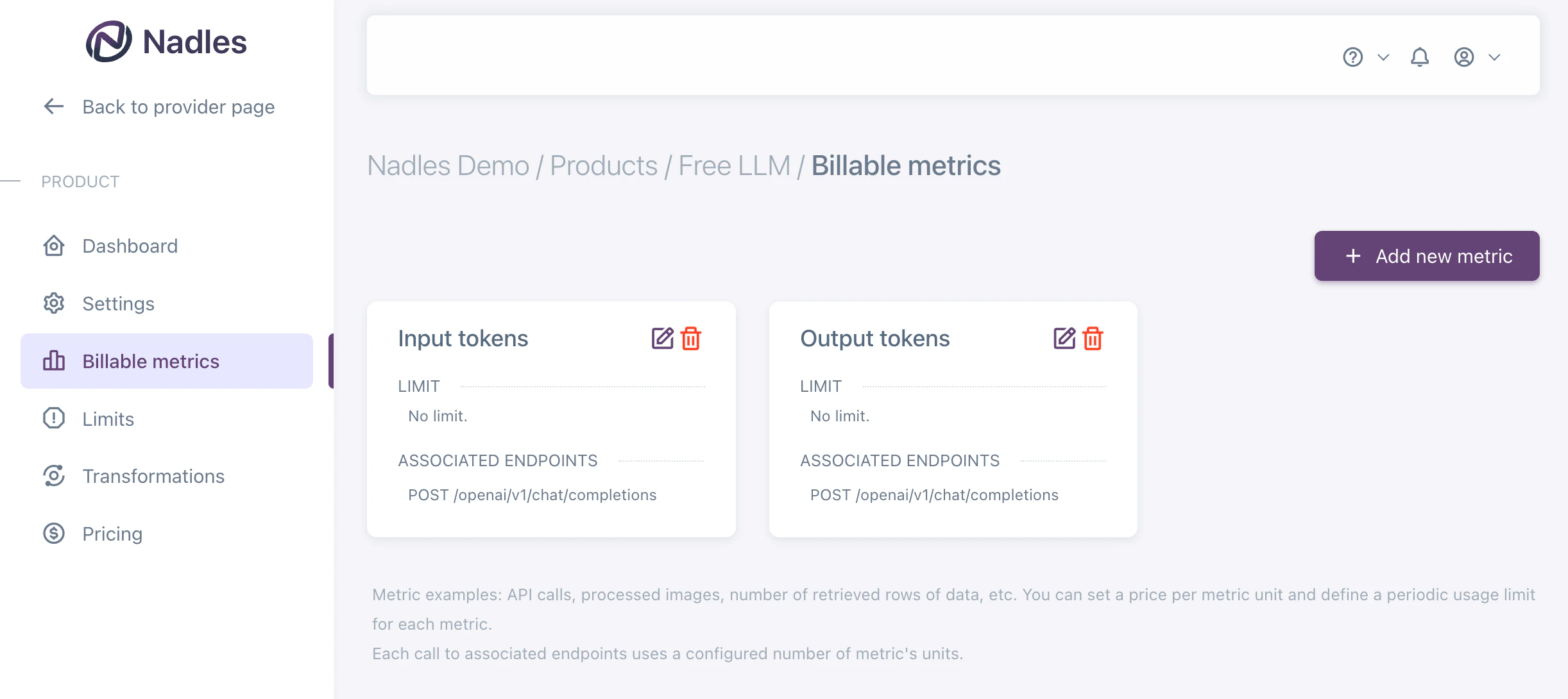
If you want to charge for input and output tokens separately, you can add two billable metrics: **Input tokens** and **Output tokens**.
Make sure to select the endpoint you want to bill for. You should associate the same endpoint with both billable metrics.
If you need to later associate more endpoints with the billable metrics for the same product, you can do so by navigating to the **Usage configuration** tab and clicking **Add endpoint**.
### Charge for input and output tokens separately
If you want to charge for input and output tokens separately, you can add two billable metrics: **Input tokens** and **Output tokens**.
Make sure to select the endpoint you want to bill for. You should associate the same endpoint with both billable metrics.
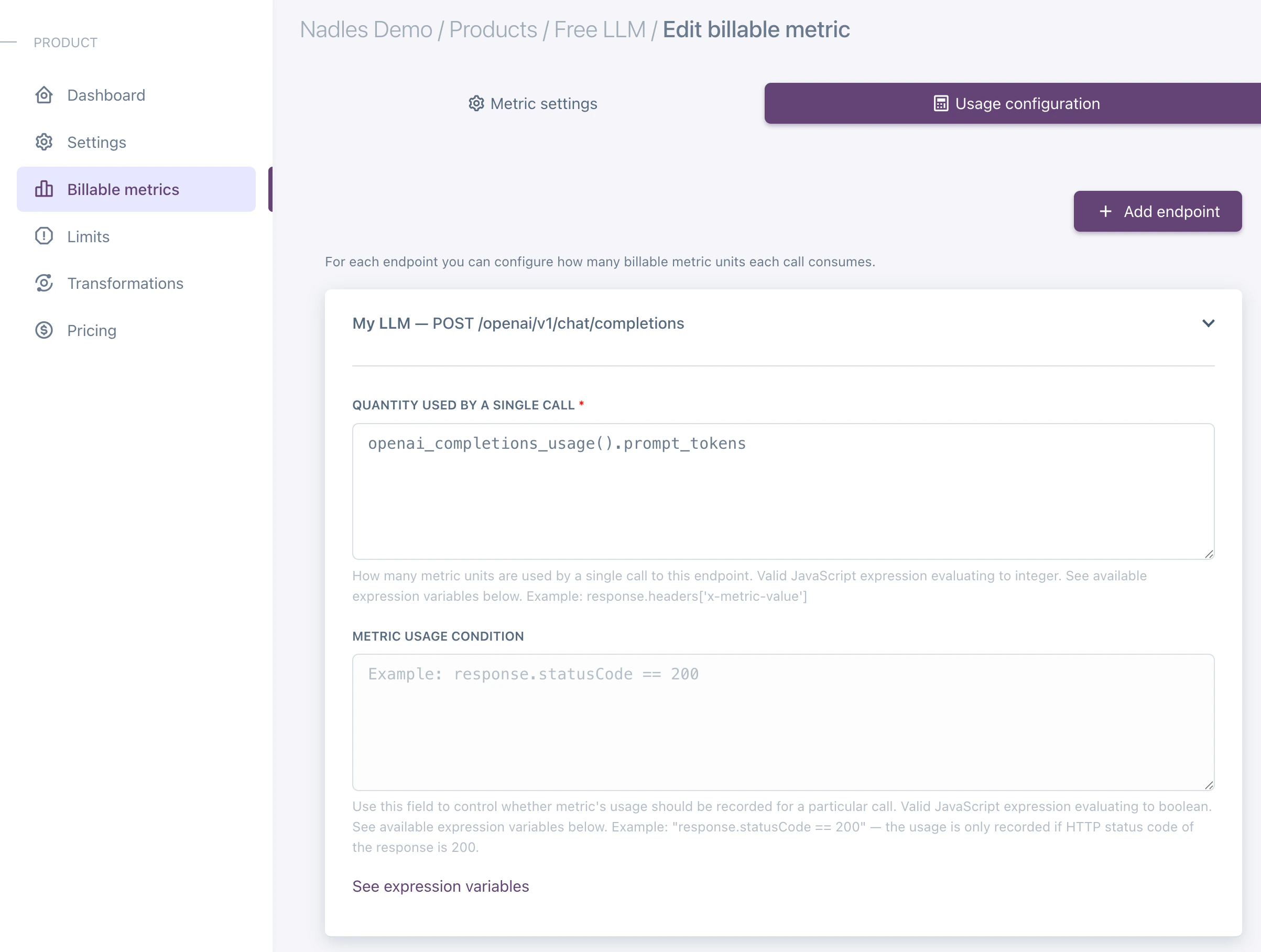
 Navigate to the **Usage configuration** tab and configure the usage for each billable metric.
Set the **Quantity used by a single call** to:
* `openai_completions_usage().prompt_tokens` for **Input tokens**
* `openai_completions_usage().completion_tokens` for **Output tokens**
This will tell Nadles to record the usage of input and output tokens separately.
Navigate to the **Usage configuration** tab and configure the usage for each billable metric.
Set the **Quantity used by a single call** to:
* `openai_completions_usage().prompt_tokens` for **Input tokens**
* `openai_completions_usage().completion_tokens` for **Output tokens**
This will tell Nadles to record the usage of input and output tokens separately.
 The `openai_completions_usage()` function returns the usage of the input and output tokens for the OpenAI Completions API.
If you are using a different API, you can use the following functions:
* openai\_responses\_usage
* anthropic\_messages\_usage
* ollama\_usage
* openai\_completions\_usage
* deepseek\_usage
* mistral\_usage
* gemini\_usage
See full list of functions and their return values [below](#supported-response-formats).
### Charge for total tokens
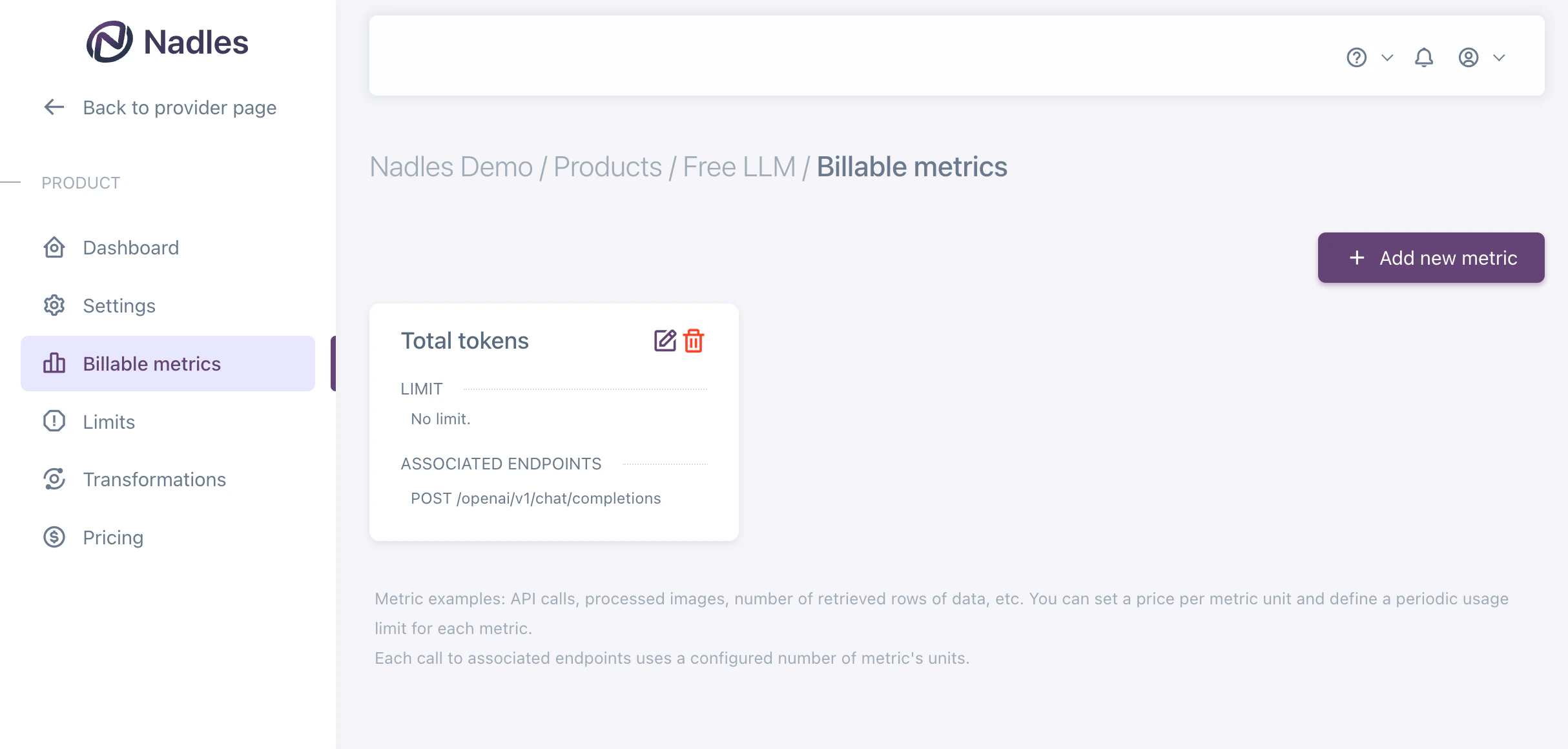
If you want to charge for total tokens, you can add one billable metric: **Total tokens**.
Make sure to select the endpoint you want to bill for.
The `openai_completions_usage()` function returns the usage of the input and output tokens for the OpenAI Completions API.
If you are using a different API, you can use the following functions:
* openai\_responses\_usage
* anthropic\_messages\_usage
* ollama\_usage
* openai\_completions\_usage
* deepseek\_usage
* mistral\_usage
* gemini\_usage
See full list of functions and their return values [below](#supported-response-formats).
### Charge for total tokens
If you want to charge for total tokens, you can add one billable metric: **Total tokens**.
Make sure to select the endpoint you want to bill for.
 Navigate to the **Usage configuration** tab and configure the usage for the billable metric.
Set the **Quantity used by a single call** to:
```js theme={null}
openai_completions_usage().prompt_tokens + openai_completions_usage().completion_tokens
```
This will tell Nadles to record the total usage of input and output tokens.
The `openai_completions_usage()` function returns the usage of the input and output tokens for the OpenAI Completions API.
If you are using a different API, you can use the following functions:
* openai\_responses\_usage
* anthropic\_messages\_usage
* ollama\_usage
* openai\_completions\_usage
* deepseek\_usage
* mistral\_usage
* gemini\_usage
See full list of functions and their return values [below](#supported-response-formats).
## Add prices
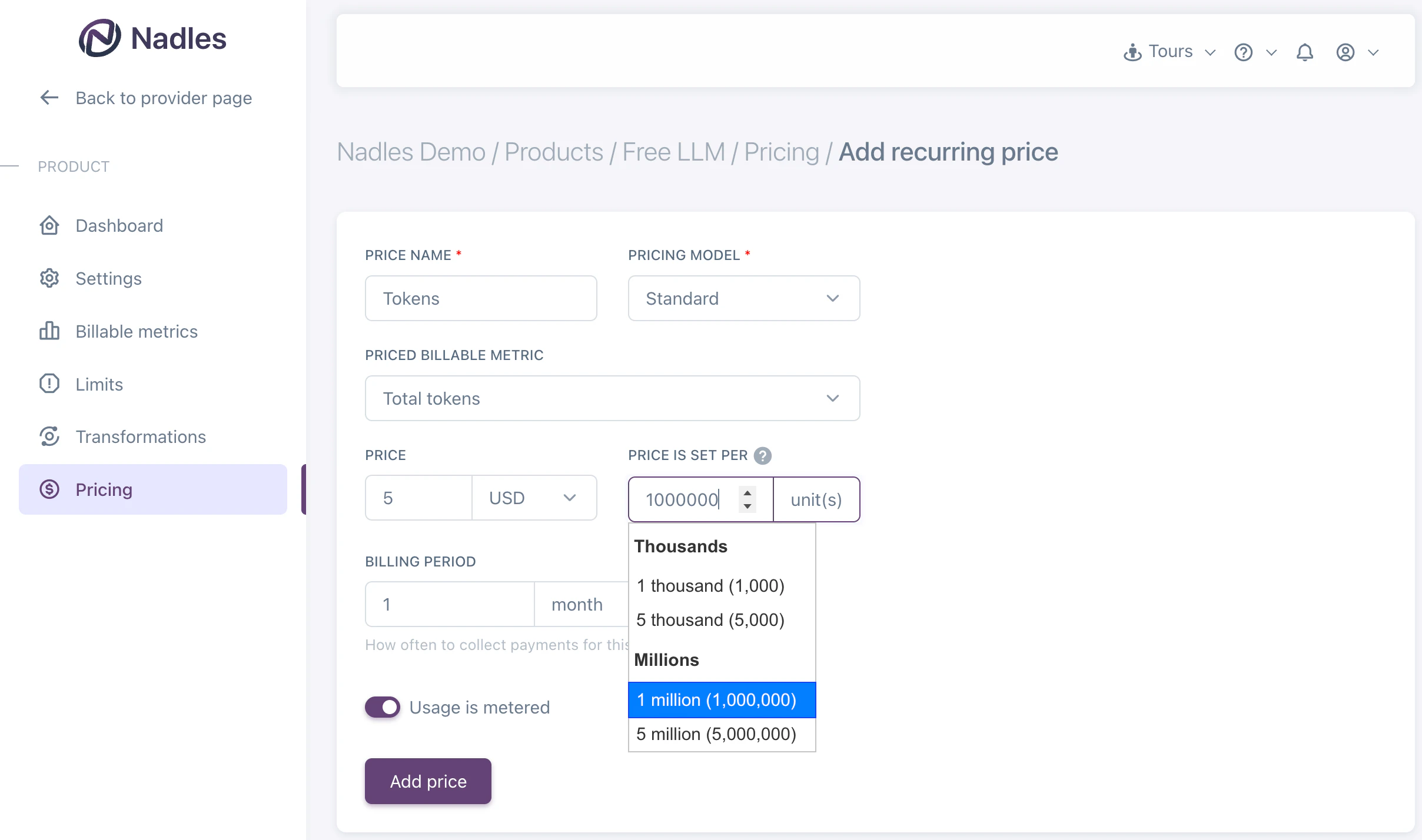
Navigate to the **Prices** in the left menu and click **Add recurring price**.
This is a basic example of a price. You can configure more complex pricing models [here](/pricing/overview).
Enter price name (e.g., "Input tokens", "Output tokens", "Total tokens", etc.) and select the billable metric you want to price.
For pay per use, check the checkbox **Usage is metered**. Or for unmetered, don't check the checkbox and set the quantity as a hard limit (e.g., 1000 tokens).
Set the price per token. For convenience, you can also set a price per N tokens, e.g. \$0.5 per 1000 tokens or \$5 per 1M tokens.
Set the billing period (e.g., monthly, yearly, etc.).
Click on **Submit**.
Navigate to the **Usage configuration** tab and configure the usage for the billable metric.
Set the **Quantity used by a single call** to:
```js theme={null}
openai_completions_usage().prompt_tokens + openai_completions_usage().completion_tokens
```
This will tell Nadles to record the total usage of input and output tokens.
The `openai_completions_usage()` function returns the usage of the input and output tokens for the OpenAI Completions API.
If you are using a different API, you can use the following functions:
* openai\_responses\_usage
* anthropic\_messages\_usage
* ollama\_usage
* openai\_completions\_usage
* deepseek\_usage
* mistral\_usage
* gemini\_usage
See full list of functions and their return values [below](#supported-response-formats).
## Add prices
Navigate to the **Prices** in the left menu and click **Add recurring price**.
This is a basic example of a price. You can configure more complex pricing models [here](/pricing/overview).
Enter price name (e.g., "Input tokens", "Output tokens", "Total tokens", etc.) and select the billable metric you want to price.
For pay per use, check the checkbox **Usage is metered**. Or for unmetered, don't check the checkbox and set the quantity as a hard limit (e.g., 1000 tokens).
Set the price per token. For convenience, you can also set a price per N tokens, e.g. \$0.5 per 1000 tokens or \$5 per 1M tokens.
Set the billing period (e.g., monthly, yearly, etc.).
Click on **Submit**.
 ## What's next
With this setup, Nadles will meter the usage of tokens, calculate the payment amount based on the actual usage and initiate payments for customers subscribed to this product.
[Set up the user portal](/user-portal/getting-started) to let your customers pay and start using your API.
## Force usage reporting
To make sure usage is reported by the LLM API if the response is streaming, you may want Nadles API Gateway to modify the request body to include the option to report usage.
Use [request transformation](/api-management/transformations#body) to achieve that.
Usually that is done by adding the following to request JSON body:
```json theme={null}
{
"stream_options": {
"include_usage": true
}
}
```
Nadles can add this parameter automatically for you.
Navigate to your API on Nadles and click on **Transformations**.
Click on **Add new request transformation**.
Choose **Target:** `Body`, **Action:** `Replace`, **Value is**: `Jq expression`.
Enter the following expression as a value:
```js theme={null}
.request.body | fromjson | if .stream == true then .stream_options = {"include_usage": true} else . end
```
## What's next
With this setup, Nadles will meter the usage of tokens, calculate the payment amount based on the actual usage and initiate payments for customers subscribed to this product.
[Set up the user portal](/user-portal/getting-started) to let your customers pay and start using your API.
## Force usage reporting
To make sure usage is reported by the LLM API if the response is streaming, you may want Nadles API Gateway to modify the request body to include the option to report usage.
Use [request transformation](/api-management/transformations#body) to achieve that.
Usually that is done by adding the following to request JSON body:
```json theme={null}
{
"stream_options": {
"include_usage": true
}
}
```
Nadles can add this parameter automatically for you.
Navigate to your API on Nadles and click on **Transformations**.
Click on **Add new request transformation**.
Choose **Target:** `Body`, **Action:** `Replace`, **Value is**: `Jq expression`.
Enter the following expression as a value:
```js theme={null}
.request.body | fromjson | if .stream == true then .stream_options = {"include_usage": true} else . end
```
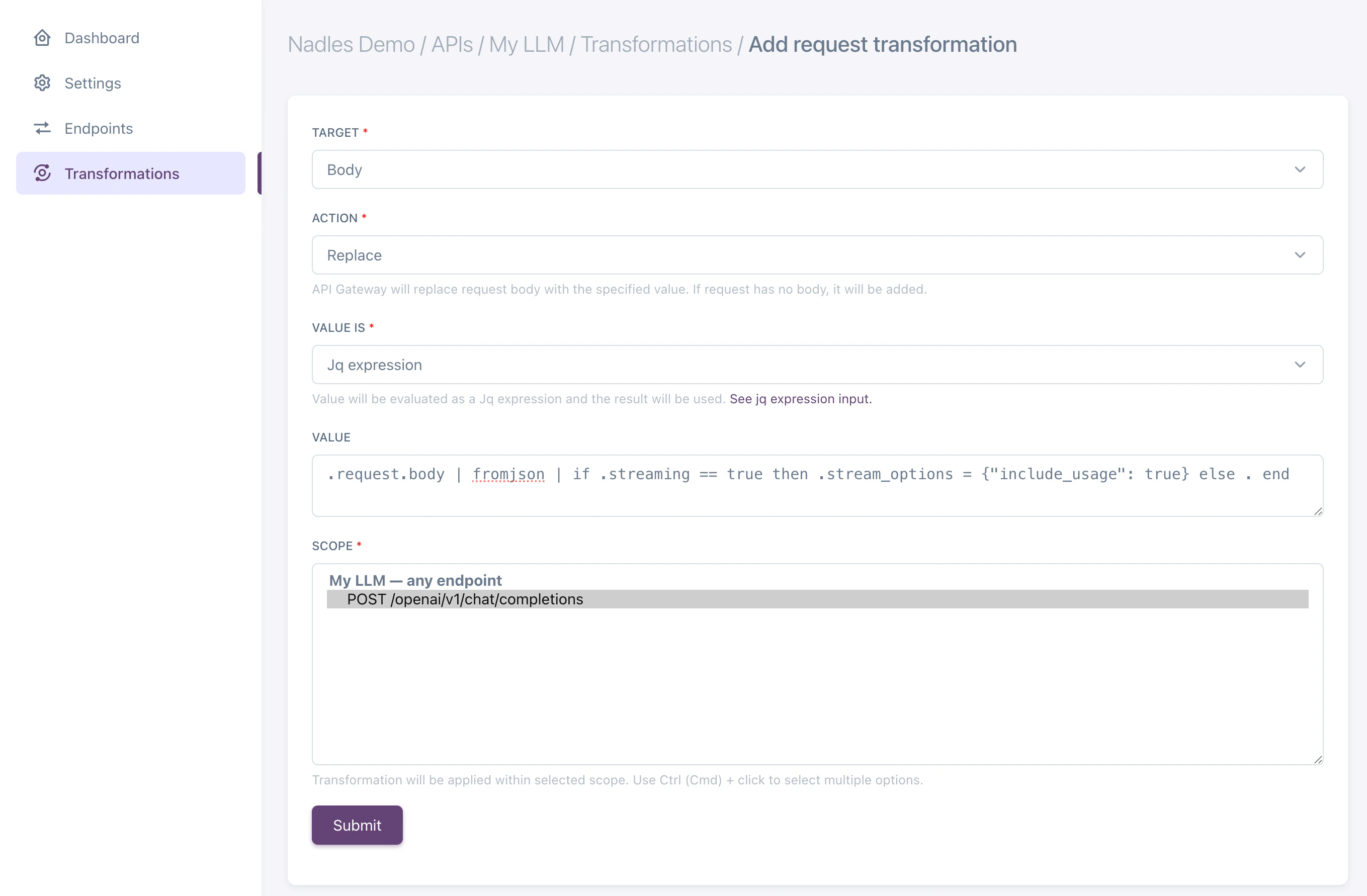 Click on **Submit**.
Now, Nadles will automatically add the `{ stream_options: { include_usage: true }}` parameter to the request body if the response is streaming.
## Supported response formats
Nadles supports the following response formats, both streaming and non-streaming:
### OpenAI Completions
**Used by:** OpenAI Completions API, DeepSeek, Mistral. Also, Ollama supports this format.
**Function:** `openai_completions_usage()`
**Return value:**
```json theme={null}
{
"prompt_tokens": 100,
"completion_tokens": 1500,
"total_tokens": 1600
}
```
### OpenAI Responses
**Used by:** OpenAI Responses API. Also, Ollama supports this format.
**Function:** `openai_responses_usage()`
**Return value:**
```json theme={null}
{
"input_tokens": 100,
"input_tokens_details": {
"cached_tokens": 0
},
"output_tokens": 1500,
"output_tokens_details": {
"reasoning_tokens": 0
},
"total_tokens": 1600
}
```
### Anthropic models
**Used by:** Anthropic APIs.
**Function:** `anthropic_messages_usage()`
**Return value:**
```json theme={null}
{
"input_tokens": 0,
"output_tokens": 0,
}
```
### Ollama
In addition to OpenAI and Anthropic-compatible formats, Ollama uses its own response structure.
Its streaming responses differ by using NDJSON (newline-delimited JSON) instead of Server-Sent Events (SSE).
To enable Nadles to correctly process Ollama responses, use the following built-in function:
```js theme={null}
ollama_usage()
```
It returns the following object:
```json theme={null}
{
"prompt_eval_count": 100, // number of input tokens
"eval_count": 100 // number of output tokens
}
```
### Gemini
**Used by:** Gemini API.
**Function:** `gemini_usage()`
**Return value:**
```json theme={null}
{
"promptTokenCount": 0,
"candidatesTokenCount": 0,
"totalTokenCount": 0,
}
```
Click on **Submit**.
Now, Nadles will automatically add the `{ stream_options: { include_usage: true }}` parameter to the request body if the response is streaming.
## Supported response formats
Nadles supports the following response formats, both streaming and non-streaming:
### OpenAI Completions
**Used by:** OpenAI Completions API, DeepSeek, Mistral. Also, Ollama supports this format.
**Function:** `openai_completions_usage()`
**Return value:**
```json theme={null}
{
"prompt_tokens": 100,
"completion_tokens": 1500,
"total_tokens": 1600
}
```
### OpenAI Responses
**Used by:** OpenAI Responses API. Also, Ollama supports this format.
**Function:** `openai_responses_usage()`
**Return value:**
```json theme={null}
{
"input_tokens": 100,
"input_tokens_details": {
"cached_tokens": 0
},
"output_tokens": 1500,
"output_tokens_details": {
"reasoning_tokens": 0
},
"total_tokens": 1600
}
```
### Anthropic models
**Used by:** Anthropic APIs.
**Function:** `anthropic_messages_usage()`
**Return value:**
```json theme={null}
{
"input_tokens": 0,
"output_tokens": 0,
}
```
### Ollama
In addition to OpenAI and Anthropic-compatible formats, Ollama uses its own response structure.
Its streaming responses differ by using NDJSON (newline-delimited JSON) instead of Server-Sent Events (SSE).
To enable Nadles to correctly process Ollama responses, use the following built-in function:
```js theme={null}
ollama_usage()
```
It returns the following object:
```json theme={null}
{
"prompt_eval_count": 100, // number of input tokens
"eval_count": 100 // number of output tokens
}
```
### Gemini
**Used by:** Gemini API.
**Function:** `gemini_usage()`
**Return value:**
```json theme={null}
{
"promptTokenCount": 0,
"candidatesTokenCount": 0,
"totalTokenCount": 0,
}
```